Chat FAQ
Some users have reported issues where the Chat tab in games does not load. It appears that this is due to certain ad-blocker or tracker-blocking apps, particularly on Android. If you are using one of these tools and cannot load chat you will need to allowlist the chat.stream-io-api.com domain and then restart StepSmash. If you continue to have issues loading Chat please reach out in Support so we can help
1. Automatic Moderation and Community Standards
To keep StepSmash a safe and welcoming place, all chat messages pass through automatic moderation tools. These tools help prevent harassment, vulgar or explicit language, and sexual language from appearing in chats. Our goal is to make sure everyone feels comfortable participating in challenges with friends and family.
The moderation system may occasionally flag messages that were not meant to be harmful. We are constantly tuning and improving the moderation AI based on real world use. If it ever feels too strict or too lenient we will adjust it as we go.
If a message is blocked you will see a notification explaining that it did not meet our community standards. You can rephrase and send the message again.
2. Managing Push Notifications
You can choose exactly which chat and game alerts you want to receive.
Change notification preferences in Settings
- Open StepSmash.
- Tap the
 in the top right of the StepSmash home screen.
 - Tap Notifications.
- Toggle on or off any of the available options.
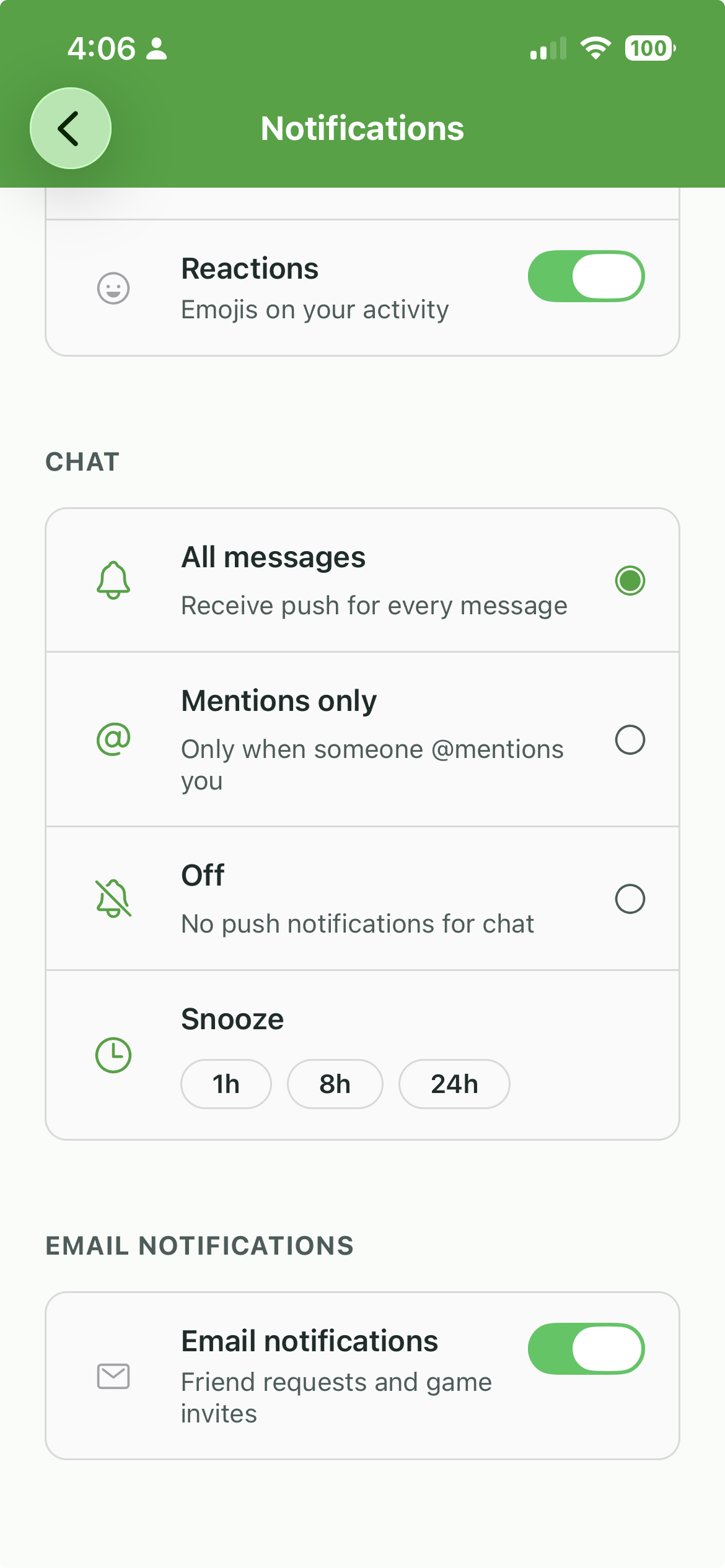
Per game notification controls
Each private challenge has its own chat channel, and you can manage notifications for that game individually.
- Open the challenge.
- Tap the Chat tab.
- Tap the
 at the top of the chat.
 - Choose whether you want all messages, mentions only, or no notifications for this game.

3. Muting a User
If you prefer not to receive chat messages from a specific player you can mute them at any time. Muting a user stops their messages and notifications from appearing for you, but it does not remove them from your challenge.
How to mute someone
- Open the chat in your private challenge.
- Tap the profile photo from the user you want to mute.
- Choose Mute User .

4. Viewing Your Muted Users List
You can review or unmute anyone you have muted.
How to find your muted list
- Tap the in the top right of the StepSmash home screen.
- Tap Privacy.
- Tap Muted Users to see the full list.

Unmute a user
- Open Muted Users.
- Tap the user you want to unmute.
- Select Unmute.

5. Reporting a Message
If you see something inappropriate or unsafe you can report a message directly to the StepSmash team.
How to report a message
- Tap and hold the message you want to report.
- Choose Flag Message .
- On the following prompt tap the Flag button.
- Someone from our team will review the report.


Need more help?
If you have questions or run into any trouble with notifications, chat settings, or safety controls, feel free to start a thread in Support
We are always here to help!